---
title: Subscription Plans
description: Create and apply subscription (SVOD) plans for your overall OTT service (like Netflix) or for one or multiple specific channels.
---
[Skip to content](https://help.endavomedia.com/knowledge/subscription-plans#main-content)
English
Show submenu for translations
[Need More Help?](https://help.endavomedia.com/knowledge/kb-tickets/new?hsLang=en)
![Endavo\_logo\_black-1.png\]](https://help.endavomedia.com/hs-fs/hubfs/Endavo_logo_black-1.png?height=40&name=Endavo_logo_black-1.png)
- [About OTT](https://www.endavomedia.com/what-is-ott/)
- [Blog](https://www.endavomedia.com/blog/)
- [Free Trial](https://www.endavomedia.com/free-trial-offer/)
Open main navigation
Close main navigation
- [About OTT](https://www.endavomedia.com/what-is-ott/)
- [Blog](https://www.endavomedia.com/blog/)
- [Free Trial](https://www.endavomedia.com/free-trial-offer/)
- English
Show submenu for translations
- [Need More Help?](https://help.endavomedia.com/knowledge/kb-tickets/new)
- [Endavo Dashboard Login](https://admin.endavomedia.com/login/)
[Endavo Dashboard Login](https://admin.endavomedia.com/login/)
Hello. How can we help you get the most out of Endavo?
- There are no suggestions because the search field is empty.
1. [Help Center](https://help.endavomedia.com/knowledge?hsLang=en)
2. [Monetize OTT Services](https://help.endavomedia.com/knowledge/monetize-ott-services?hsLang=en)
# Subscription Plans
## Create and apply subscription (SVOD) plans for your overall OTT service (like Netflix) or for one or multiple specific channels.
The Endavo platform allows you to create multiple subscription plans that fit the changing needs of your growing OTT business. Easily create a **Global Subscription Plan** that you can apply to all channels in your content library. Or, create bundle (**pack**) or single-channel (**a la cart**e) subscription plans to apply to specific channels and let your viewers create their own bundles of subscriptions. A la carte subscriptions are especially useful if you are building a multi-channel creator network and let channel partner sell their own channel subscriptions.
**IMPORTANT NOTE**: Before you can offer subscription plans to your viewers, you must have a Stripe account (**Payment Gateway**) set up and connected to your Endavo account. If you haven't connected Stripe yet, [CLICK HERE](https://help.endavomedia.com/knowledge/connecting-to-payment-gateway?hsLang=en) for instructions.
Set up Subscriptions:
1. Go to **Plans \> Subscription Plans \> Add New** to add a new Subscription Plan. Create Subscription Plans page will appear.
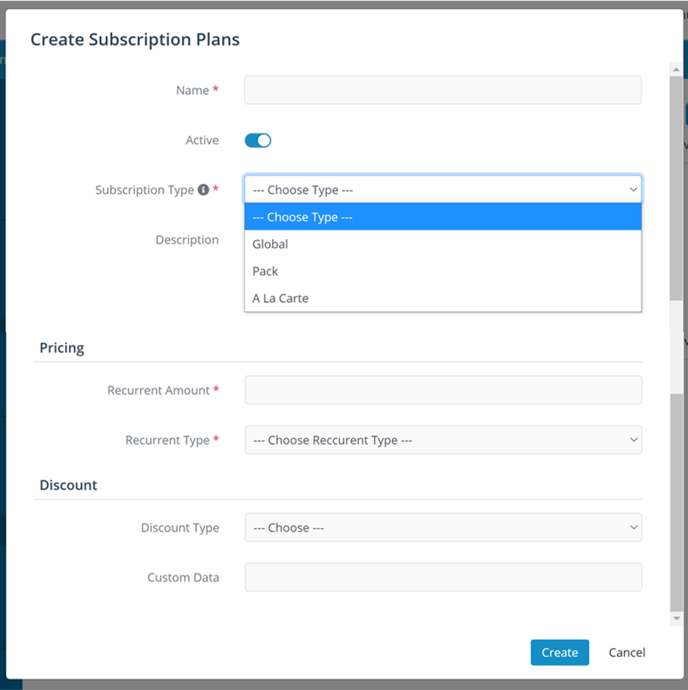
2. Name your plan
3. Select Type (**NOTE:** Only Global subscription plans are available for OTT Channel and OTT Channel Pro accounts)
1. **Global** will apply to all channels added to the subscription plan and subscription will be offered on the top menu of your Web App (website) and Apps, and to new users as they sign up on your OTT apps.
2. **Pack** will apply to specific channels added to the subscription. Subscriber will get access to only those channels in the pack.
3. **A la Carte** will apply to a single channel added to the subscription.
4. Add a price and recurring frequency (e.g., monthly)
5. Add a **Discount Type** to apply a free trial or initial discount to all new subscribers. (Note: you can also offer promo codes if you'd like to give certain or limited new subscribers a free trial or discount. [CLICK HERE](https://help.endavomedia.com/knowledge/promo-codes?hsLang=en) to learn more).
6. Click **Create** to save **Subscription Plan**
7. Once your subscription plan has been created, you can assign any channel to a subscription plan by editing the **Channel Information** page. (Note: only channels can be added to a subscription plans) by selecting **Available For Members with Subscriptions** and selecting the subscription plan to apply.

8. Click **Save** when you are finished editing your Channel Information page.
9. Once you have added all or some Channels to a **Global Subscription**, Viewers on your Web App (website) or Apps will be prompted to subscribe when they try to view any content behind the subscription paywall.
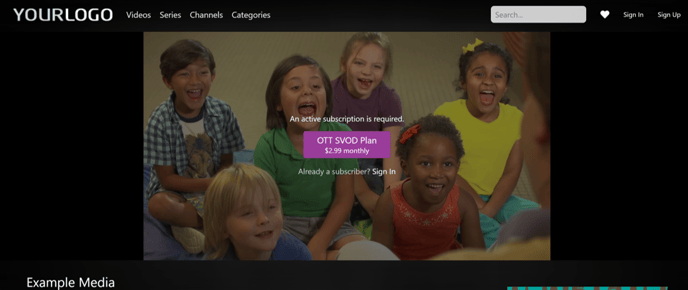
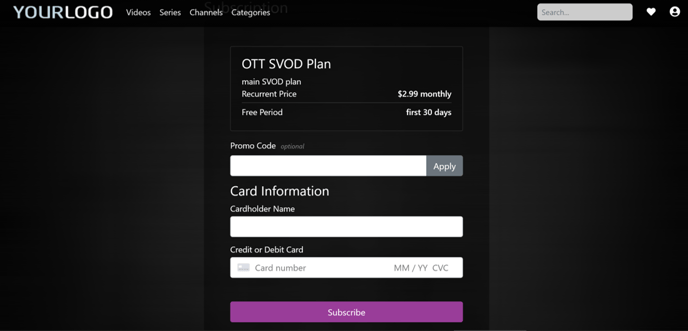
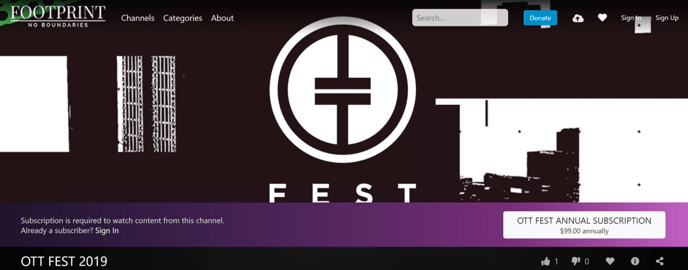
10. If you are using **A la Carte** or **Pack** subscriptions (upgraded accounts only), viewers can subscribe from the channel page on your Web App or Apps or they will be prompted to subscribe if they try to play any content behind the subscription paywall.
Thanks for reading! Check out our [resources](https://www.endavomedia.com/resources/) and [blog](https://www.endavomedia.com/blog/) on our website to get more helpful tips, use cases, and creative ideas for building your OTT business.

- [Get Started on Endavo!](https://help.endavomedia.com/knowledge/get-started-on-endavo?hsLang=en)
- [Manage Account](https://help.endavomedia.com/knowledge/manage-account?hsLang=en)
- [Manage OTT Website and Apps](https://help.endavomedia.com/knowledge/manage-ott-website-and-apps?hsLang=en)
- [Manage Content Library](https://help.endavomedia.com/knowledge/manage-content-library?hsLang=en)
- [Channels and Playlists](https://help.endavomedia.com/knowledge/channels-and-playlists?hsLang=en)
- [Live Events and Live Channels](https://help.endavomedia.com/knowledge/live-events-and-live-channels?hsLang=en)
- [Monetize OTT Services](https://help.endavomedia.com/knowledge/monetize-ott-services?hsLang=en)
- [Get Reports and Analytics](https://help.endavomedia.com/knowledge/get-reports-and-analytics?hsLang=en)
- [Share Your Content](https://help.endavomedia.com/knowledge/share-your-content?hsLang=en)
- [Endavo Release Notes Hub](https://help.endavomedia.com/knowledge/endavo-release-notes-hub?hsLang=en)
- [About OTT](https://www.endavomedia.com/what-is-ott/)
- [Blog](https://www.endavomedia.com/blog/)
- [Free Trial](https://www.endavomedia.com/free-trial-offer/)
[](https://www.endavomedia.com/)
Endavo Help Center
Copyright © 2026, Endavo Media and Communications, Inc.