![Endavo_logo_black-1.png]](https://help.endavomedia.com/hs-fs/hubfs/Endavo_logo_black-1.png?height=40&name=Endavo_logo_black-1.png)
To run programmatic Google ads on the Endavo platform, you'll need to generate VAST tags using Google Ad Manager (GAM) or AdSense, and then use those tags in Endavo’s Ad Tag platform and Ad Scheduler. Below is a step-by-step guide tailored for both GAM and AdSense, with specific guidance for integrating with Endavo.
💡 NOTE: This article covers Google Ads, however Endavo supports many ad platforms that provide VAST or, to a lesser extent, VPAID ad tags. LEARN MORE HERE. The process is the same for adding Ad Tags for Ad Schedules below.
✅ 1. CHOOSE YOUR AD SERVER
If you are going to run Google Ads, you have two main options:
-
Google Ad Manager (GAM) – More advanced, supports direct, programmatic, and network demand.
-
Google AdSense for Video – Simpler to set up but less customizable.
🧩 2. GOOGLE AD MANAGER (GAM) – VAST TAG SETUP
Step 1: Link Your Video Content Source
-
Make sure your video player is VAST-compliant (Endavo’s player is).
-
You'll serve VAST ads through a VAST tag URL, so no SDK integration is required if using a server-side video platform like Endavo.
Step 2: Create an Ad Unit
-
Go to Inventory > Ad units.
-
Create a new ad unit (e.g.,
endavo_preroll_channelname). -
Set size as video/vast (leave dimensions blank).
-
Associate the unit with a placement if needed.
Step 3: Create an Order, Line Item, and Creative
-
Go to Delivery > Orders, then create a new Order.
-
Add a Line Item:
-
Type: Video (Choose Standard, Sponsorship, or Programmatic).
-
Targeting: Pick your ad unit and any geo/device targeting.
-
Duration: Match your video ad slot (e.g., 15s, 30s).
-
-
Add a Creative:
-
Type: VAST or Third-party video.
-
Upload or link to the video ad creative.
-
Include fallback if needed.
-
Step 4: Generate the VAST Ad Tag
-
Go to Inventory > Ad Units > [Your Ad Unit].
-
Click “Tags” and choose Video VAST Tag.
-
Customize for:
-
Ad type (pre-roll, mid-roll, post-roll).
-
Max duration (optional).
-
Environment: Web or App.
-
✅ Copy the VAST URL. This is what you’ll use in Endavo.
💡 NOTE: HERE is a good place to start learning more about using Google Ad Manager to generate Ad Tags if you are new to GAM.
🪙 3. GOOGLE ADSENSE FOR VIDEO – VAST TAG SETUP
Step 1: Get Approved for AdSense for Video
-
Standard AdSense doesn't support VAST for video.
-
You must apply via your AdSense dashboard or through a partner manager.
Step 2: Use Google AdSense Auto-Generated VAST Tag
Once approved:
-
Go to Ads > By Ad Unit > Video Ads.
-
Set up the video ad unit (pre-roll, mid-roll).
-
AdSense will generate a VAST URL.
-
Copy this VAST tag for use in Endavo.
💡 NOTE: AdSense has stricter traffic eligibility and may throttle delivery on lower-traffic OTT platforms.
🧩 4. INTEGRATE VAST TAGS INTO ENDAVO
💡The following steps can be used for any ad platform that generates VAST or VPAID tags. Learn more about other ad platforms.
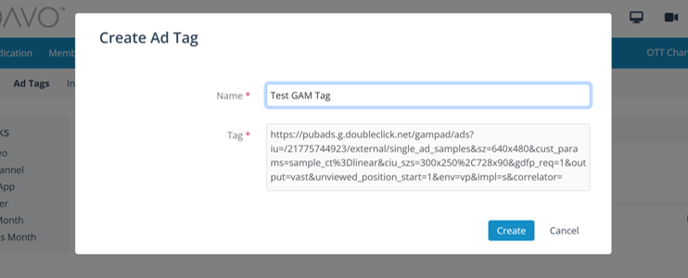
Step 1: Ad Tags
- Go to your Endavo Admin Dashboard.
-
Navigate to Ads > Ad Tags.
-
Add New
-
Assign a name (e.g., “GAM preroll”).
-
Paste in the VAST tag.
-
-
Now you can assign this Ad Tag to an Ad Schedule that can then be added to Channels, Media Items, or App Platforms (*coming soon for Virtual Live Channels and Event schedules).
Step 2: Ad Schedules (per Channel, Season, App, or Video)
-
Go to your Endavo Admin Dashboard.
-
Navigate to Ads > Ad Schedules.
-
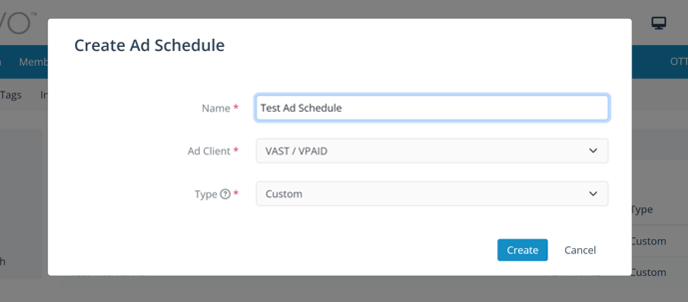
Add New
- Assign a name
- Select "VAST/VPAID" or "Google IMA" (usually VAST/VPAID
- Select "Custom" unless you want to enter a VMAP tag
-
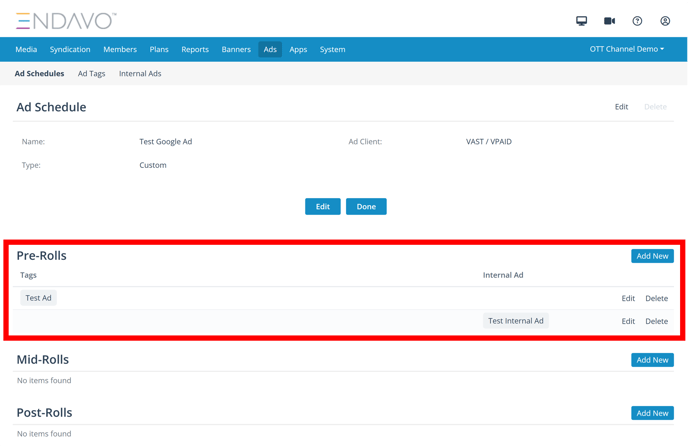
Once you create an Ad Schedule you can now add/manage your VAST tags by clicking on the Ad Schedule name.
-
On this Ad Schedule screen you can now add multiple Pre-, Mid- and Post-Rolls for multiple ads to play during the ad break (as of 12/16/25)
-
Ad Schedule Feature: Ad Waterfall / Fallback
-
Endavo allows waterfall logic: if one tag fails, move to the next
-
Add secondary VAST tag(s) in priority order
-
Add Internal Ads for fallback to uploaded Internal Ads
-
-
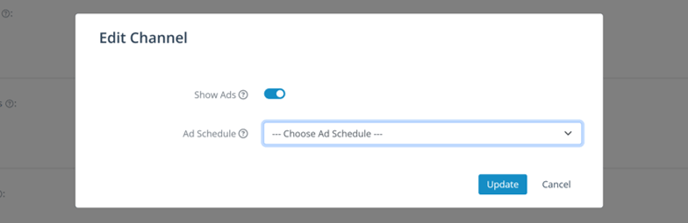
- Now that you have an Ad Schedule ready to go, you can add the Ad Schedule in any Media Item, Channel or App Platforms by going to the respective edit screen and checking "Allow Ads" and assigning the Ad Schedule.
✅ TIPS FOR OPTIMAL SETUP
-
Mid-rolls: plays halfway through the video duration
-
VAST 3.0+: Make sure your tags are at least VAST 3.0-compliant.
-
Test ads: Use Google's VAST Inspector tool.
-
Frequency capping: Set rules in GAM
-
Geo-targeting or device-specific: Do this in GAM or by using multiple ad tags