---
title: Promote Content and Events with Home Page Banners
description: learn how to quickly add a banner and banner groups (sliders) to your website and apps home page and any content screen.
---
[Skip to content](https://help.endavomedia.com/knowledge/home-page-banners#main-content)
English
Show submenu for translations
[Need More Help?](https://help.endavomedia.com/knowledge/kb-tickets/new?hsLang=en)
![Endavo\_logo\_black-1.png\]](https://help.endavomedia.com/hs-fs/hubfs/Endavo_logo_black-1.png?height=40&name=Endavo_logo_black-1.png)
- [About OTT](https://www.endavomedia.com/what-is-ott/)
- [Blog](https://www.endavomedia.com/blog/)
- [Free Trial](https://www.endavomedia.com/free-trial-offer/)
Open main navigation
Close main navigation
- [About OTT](https://www.endavomedia.com/what-is-ott/)
- [Blog](https://www.endavomedia.com/blog/)
- [Free Trial](https://www.endavomedia.com/free-trial-offer/)
- English
Show submenu for translations
- [Need More Help?](https://help.endavomedia.com/knowledge/kb-tickets/new)
- [Endavo Dashboard Login](https://admin.endavomedia.com/login/)
[Endavo Dashboard Login](https://admin.endavomedia.com/login/)
Hello. How can we help you get the most out of Endavo?
- There are no suggestions because the search field is empty.
1. [Help Center](https://help.endavomedia.com/knowledge?hsLang=en)
2. [Get Started on Endavo!](https://help.endavomedia.com/knowledge/get-started-on-endavo?hsLang=en)
# Promote Content and Events with Home Page Banners
## learn how to quickly add a banner and banner groups (sliders) to your website and apps home page and any content screen.
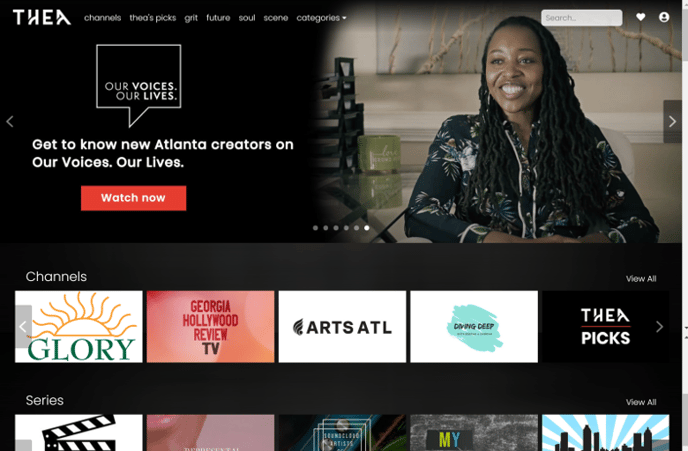
One of the first things you'll want to do when you start your OTT Channel or launch your OTT Platform apps is to create some eye-catching banners to feature and promote content, channels, events, etc., on your OTT service. You can even promote brands and link to external sites from your website Banners, if that is important to you.
Welcome your viewers by promoting your best content and upcoming events:
### Quick Start: How to create and add banners to your home page
1. Create your Banner images. Your banner image size should ideally be 1920 x 685. Be creative and make sure to add your promo message and call to action to your banner images.
2. Upload your banners to your Endavo dashboard by clicking **Add New** on your **Banners** page. For Quick Start, add your banner to **Home Page Sliders** group. [Click Here](https://help.endavomedia.com/knowledge/how-to-create-banners?hsLang=en) to learn more about adding information to your banners and linking to internal or external content, events, etc.
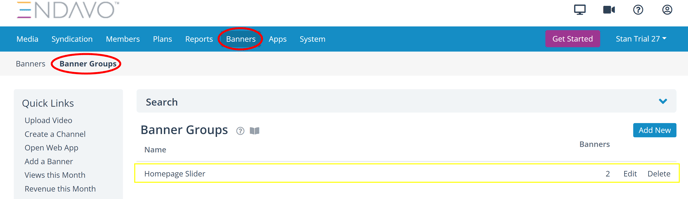
3. "**Home Page Sliders**" Banner Group has been created for you by default and added to your default OTT Channel home page. (you can rename it what you want). You can add more **Banner Groups** for other purposes. [Click Here](https://help.endavomedia.com/knowledge/how-to-create-banners?hsLang=en) to learn more about Banner Groups.
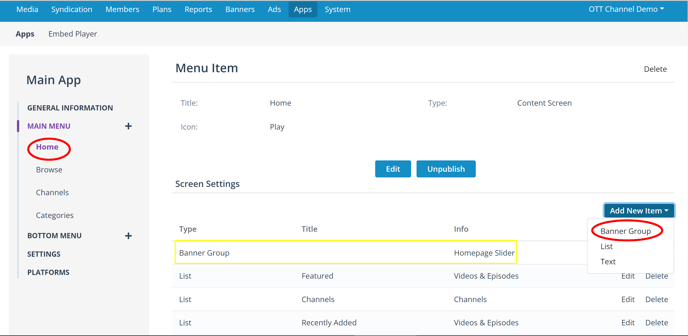
4. **Home Page Sliders** Banner Group has already been added to your Home Pageby default, but you can add more Banner Groups to any Content Screen on your website or apps by adding them inside your **App Settings** screen. [Learn More](https://help.endavomedia.com/knowledge/how-to-create-banners?hsLang=en) about adding Banner Groups to your Apps.
- [Get Started on Endavo!](https://help.endavomedia.com/knowledge/get-started-on-endavo?hsLang=en)
- [Manage Account](https://help.endavomedia.com/knowledge/manage-account?hsLang=en)
- [Manage OTT Website and Apps](https://help.endavomedia.com/knowledge/manage-ott-website-and-apps?hsLang=en)
- [Manage Content Library](https://help.endavomedia.com/knowledge/manage-content-library?hsLang=en)
- [Channels and Playlists](https://help.endavomedia.com/knowledge/channels-and-playlists?hsLang=en)
- [Live Events and Live Channels](https://help.endavomedia.com/knowledge/live-events-and-live-channels?hsLang=en)
- [Monetize OTT Services](https://help.endavomedia.com/knowledge/monetize-ott-services?hsLang=en)
- [Get Reports and Analytics](https://help.endavomedia.com/knowledge/get-reports-and-analytics?hsLang=en)
- [Share Your Content](https://help.endavomedia.com/knowledge/share-your-content?hsLang=en)
- [Endavo Release Notes Hub](https://help.endavomedia.com/knowledge/endavo-release-notes-hub?hsLang=en)
- [About OTT](https://www.endavomedia.com/what-is-ott/)
- [Blog](https://www.endavomedia.com/blog/)
- [Free Trial](https://www.endavomedia.com/free-trial-offer/)
[](https://www.endavomedia.com/)
Endavo Help Center
Copyright © 2026, Endavo Media and Communications, Inc.